Commands Guide¶
Quick Reference¶
| Command | Purpose |
|---|---|
/start |
First-time setup wizard |
/module |
Search a module, with autocomplete |
/here |
The module this channel is named after |
/filter |
Advanced filtering (credit points, language, exam) |
/compare |
Put two or three modules side by side |
/semesterplan |
Manage your schedule and export an .ics calendar |
/my_data |
See everything stored about you, and delete it |
/help |
Every command explained, plus common questions |
Those eight are the ones /start names. Everything else is a command as well:
| Command | Purpose |
|---|---|
/standard_plan |
The official study plan of your programme, as an image |
/progress |
The credit points you planned, against the 30 of a semester |
/empfehlung / /suggest |
Modules that fit your programme and open credits |
/rate |
Rate a module, with an optional written review |
/klausuren |
Past exam archives of the student councils |
/fristen / /deadlines |
Roughly what is due when in the semester |
/lms / /elearning |
The four university portals and what each is for |
/ansprechpartner / /contacts |
Dean's office, examination office, student council |
/studybuddy |
Find other students who plan the same module |
/feedback |
Tell us what you think of the bot |
Four commands have two names, a German and an English one. Discord shows the one
that fits the language of your Discord app, so you only ever see one of them. It is
the language of the app that counts, not the one you picked in /start.
Three features are switched off for now and not in the slash menu: the badges
(/badges), the comparison with the cohort (/cohort, /statistik) and the weekly
puzzle (/codegolf, /challenge). Their sections below say so.
Two more exist for administrators and are hidden from everybody else:
/version and /review_feedback. !ping and !resync are prefix commands.
Why /start only names eight¶
A newcomer cannot learn twenty names at once, and the welcome screen used to try: it
drew one component per command, which pushed it past the forty component limit of a
discord view and made /start raise an exception instead of answering.
So /start names the eight you need on day one and points at /help. /help has
three menus:
| Menu | What it does |
|---|---|
| Öffnen / Open | Starts a feature without knowing its command name |
| Befehl / Command | Explains any of the commands above |
| Frage / Question | Answers what students ask most often |
The short list is src/util/command_surface.py, the menu is
src/oscar/ui/help_launcher.py. A test refuses any command that /help cannot
explain and has no reason to be undocumented.
Getting Started¶
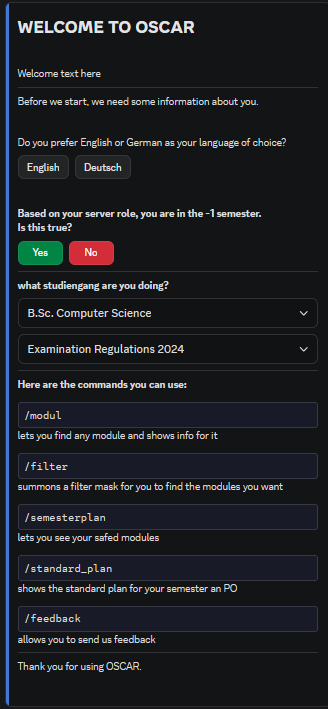
Start your journey here. These commands set up your profile and help you find your way.
The Setup Wizard¶
Launches an interactive welcome guide designed for first-time users.
- Sets: Language (DE/EN), Semester, and Study Program.
- Why: Customizes recommendations and planning features for your specific needs.
Search & Discovery¶
Find the modules you need without leaving Discord.
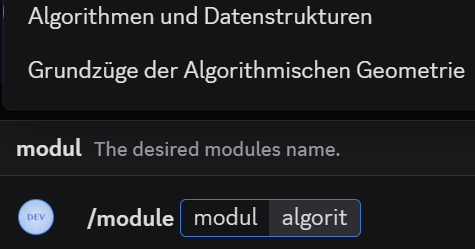
Important: While typing, wait for the selection options to appear above the input field. Use these autocomplete suggestions to select your module.
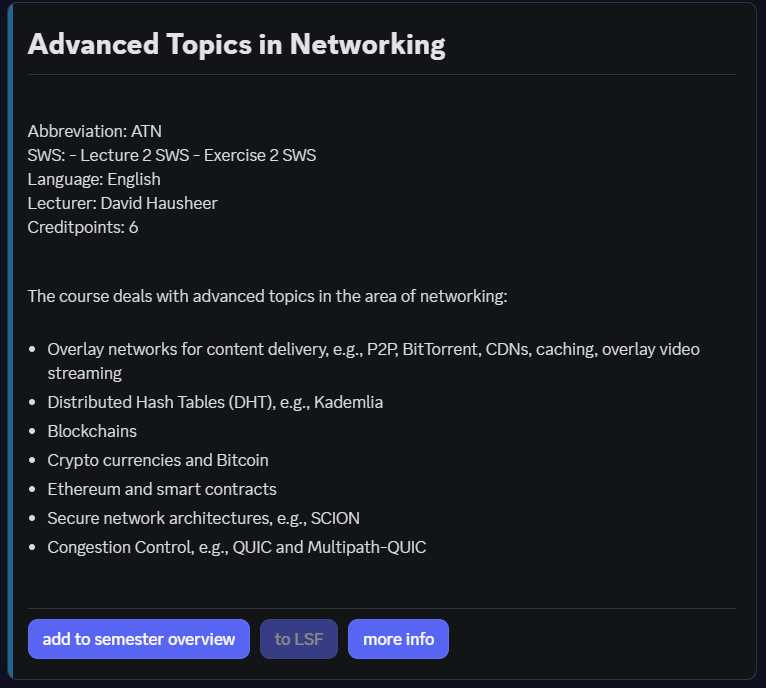
What it shows:
- Stats: Credit Points (CP), SWH (= Semester Weekly Hours), and Exam Type.
- Info: Lecturer, Content, Learning Goals, and Literature.
- Links: A button to the module in the LSF, and one to the official module handbook in the faculty BookStack. The handbook link opens the page in the book of your own study programme when we know which module it is, and the wiki search otherwise.
Two modules with the same name? Some titles exist more than once, for example
Introduction to Simulation. Those entries carry their module number, soIntroduction to Simulation (100372)andIntroduction to Simulation (120345)are two different modules. Every other title stays plain.
Usage Examples:
/module Advanced Topics in Networking
The Module of This Channel¶
The server keeps one channel per module. #algorithmen-und-datenstrukturen is the
module "Algorithmen und Datenstrukturen", so /here reads the channel name and opens
that module card, with its links to LSF, the module handbook, Moodle, the ratings and
the past exams.
- It asks when it is not sure.
#datenbankenis either "Datenbanken 1" or "Datenbanken 2", so you get a short dropdown instead of a guess. - It says so when it finds nothing.
#memesis not a module, and the answer points at/modulerather than opening something at random. - In a thread the parent channel is read, because a thread is named after a question and the channel after the module.
- The answer is private, so a module card never fills the channel for everybody else.
Smart Search¶
Search for a specific module by name using the integrated Autocomplete feature.
- Wait for Options: The system generates a list of matches (e.g., "Math") as you type.
- Selection: Always pick the module from the appearing list to ensure the search processes correctly.
- Accuracy: Using suggestions prevents typos and ensures you find the exact entry.
Side by Side¶
Use this when you have narrowed an elective down to two or three candidates and have to pick one. It puts them next to each other instead of making you open three cards and remember the first.
- Compared: credit points, teaching form and SWS, language, exam and lecturer.
- The footer names what differs, so you see the deciding row without reading twice.
- Two or three. The third module is optional. A fourth would wrap onto a second row and stop being a comparison.
- Each module keeps its handbook button, so you can read the full description right after deciding.
Pick every module from the autocomplete list, the same way /module works. Naming the
same module twice is refused, because comparing it with itself says nothing.
Advanced Filtering¶
Opens an interactive mask of buttons to filter modules according to your criteria.
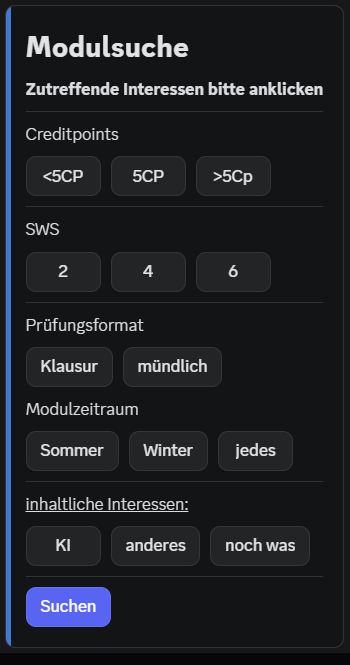
- Multi-selection: Selecting several buttons in the same row combines them as an OR (for example,
< 5 CPand5 CP). Selecting buttons in different rows combines them as an AND (for example,5 CPandWritten exam). - Sorting: Above the paginated results, sort buttons allow ordering the list by Credit Points (
CP ↑/CP ↓) or by Title (Title A-Z/Title Z-A) without losing your active page.
Available Filters:
| Category | Filter Options | Combining Behavior |
|---|---|---|
| Credit Points | < 5 CP, 5 CP, > 5 CP |
Multiple selections in row count as OR |
| SWH | < 3, 3, > 3 |
Multiple selections in row count as OR |
| Exam Type | Written Exam, Oral Exam | Multiple selections in row count as OR |
| Semester | Summer, Winter, Every semester | Multiple selections in row count as OR |
| Interests | AI, Computer Games, Systems Engineering, Scientific Computing | Multiple selections in row count as OR |
Semester Planning¶
Your personal digital study coordinator.
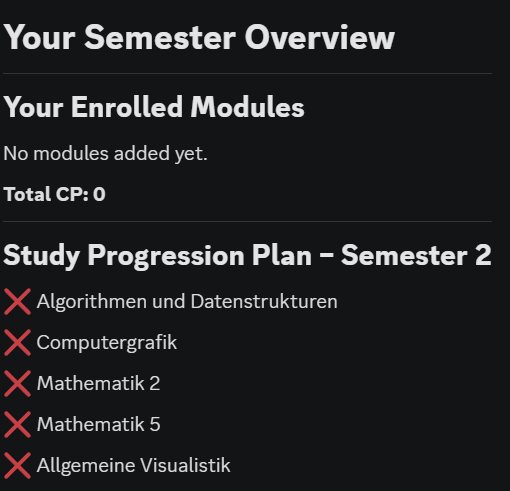
Your Schedule Displays your saved modules grouped by semester.
Features:
- Summary: View total CP and SWH per semester.
- Persistent: Data is saved to your profile (linked to Discord ID).
- Workload: Estimates weekly effort based on SWH.
Workload Management Tips:
- Target: 30 CP per semester.
- Rule of Thumb: 1 CP ≈ 25-30 hours total workload (lectures, self-study, exam prep) → 30 CP/Semester ≈ 40 hours/week
How to manage:
- Add: Use
/modulesearch and click "Add to Plan". - View: Run
/semesterplanto see the overview. - Remove: Press the
Xnext to a module.more infoopens its card again. A plan with more than six modules is shown as one list. Two menus under it remove a module or open its card. - Export Calendar (
.ics): Click the 📅 Kalender (.ics, ohne Zeiten) button to receive a standard iCalendar file with your enrolled modules, BookStack links, and official FIN examination deadlines.
Official Curriculum Integration¶
View your degree's officially recommended path.
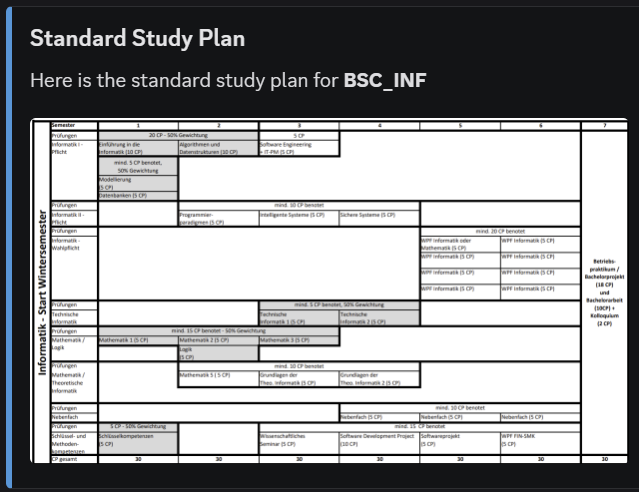
Or, if you do not know the name yet: /help → Öffnen → Regelstudienplan.
- Purpose: See exactly which modules the university expects you to take in the current semester based on your saved major.
- Progress Marking: When you have modules saved in your semester plan,
/standard_plancompares your saved modules against the curriculum. A checkmark (✅) indicates a module is in your plan, while an open box (⬜) marks open requirements. Total and per-semester planned credit points are summarized. - Elective Matching: Elective slots (
WPF) are automatically matched against your saved modules using degree-specific usability rules. - Note on Grades: OSCAR does not track grades; checkmarks mean a module is planned in your schedule, not that it was passed.
- Picture: Every plan is shown as a picture, one column per semester, with the credit total in each heading. When progress is tracked, the rendered plan highlights your progress. Pale boxes are electives, where you pick a module yourself.
- Handbook: A button opens the official module handbook of your study programme.
- Coverage: All eight plans are available, for a winter start and for a summer start. If your programme has none yet, the bot says so instead of showing a wrong one.
Set it up first.
/standard_planneeds your study programme and your examination regulations. Run/startif you have not yet. It answers privately (ephemeral) to keep your curriculum progress to yourself.
Study Buddies & Study Groups¶
Find other students who plan the same module and form study groups.
- Privacy by Default: Your semester plan is completely private. Other students only see you if you explicitly click ✅ Als Lernpartner:in eintragen for that module.
- Anonymous Statistics: View how many students plan the module in their schedule and how many are looking for study buddies.
- Revocable: Opt out at any time with a single click (❌ Austragen).
- Private Study Threads: Once matched, create a dedicated Discord thread (🧵 Thread erstellen) with one click, pinging all opted-in participants.
- Direct Access: Also available via the 👥 Lerngruppe button directly on every module card in
/module.
Feedback & Ratings¶
Help us improve OSCAR and support peer students in course selection.
Or, if you do not know the name yet: /help → Öffnen → Feedback zum Bot.
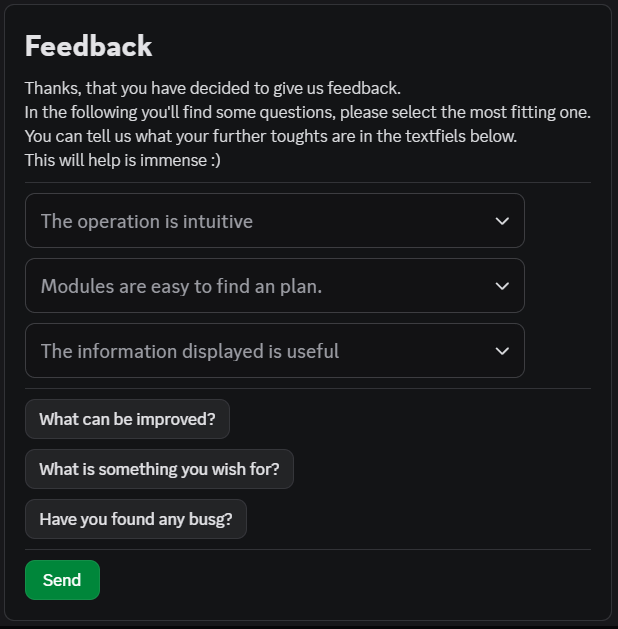
Rate the Bot Opens a structured form to evaluate your experience with OSCAR.
Rating Metrics (Scale 1-4):
- Intuitiveness: Is the bot easy to use?
- Discoverability: Can you find modules easily?
- Usefulness: Is the provided information helpful?
Optional text fields allow you to report bugs or suggest features.
Module Ratings & Reviews¶
- Rate Modules (1–5 Stars): Evaluate courses you have attended to help fellow students plan their studies.
- Difficulty Assessment (1–5): Provide insight into whether workload and exam difficulty are low or high.
- Advice & Tips: The comment field is optional and is the part that actually helps the next student.
- Reading them: The module card quotes the newest review under the averages and counts the rest. 💬 Erfahrungen opens the five most recent in full, each with its stars, its difficulty and the date.
- No names. A review is shown without an author. The table stores a discord id so
that one student can only rate a module once, not to attribute the text. Delete your
own with
/my_data.
This was broken until 2026-09-17
/rate asked for a review from the first day, stored it, and displayed it nowhere.
Database.get_module_comments existed and nothing called it, so every tip written
went into the database and was never read.
Past Exam Archives (Altklausuren)¶
Or, if you do not know the name yet: /help → Öffnen → Altklausuren.
Every faculty runs its own archive, so the command lists all of them with one link button each. A Wirtschaftsinformatik student writes exams at the FWW, and every programme contains maths from the FMA.
| Student council | Faculty | What you find there |
|---|---|---|
| FaRaFIN | Computer Science (FIN) | Every CS module, plus written recollections of oral exams |
| FaraWiwi | Economics and Management (FWW) | Business studies, economics and statistics, split by degree |
| FaraMath | Mathematics (FMA) | Recollections for the maths modules, by subject and examiner |
- OSCAR hosts nothing. The copyright on an exam paper sits with the chair, not with the student who wrote it. Issue #43 settled that: link, never host.
- Direct access: every module card carries a
📚 Altklausurenbutton to the FaRaFIN archive. klausuren.farafin.deused to be the one address OSCAR showed. That host stopped resolving, so the button led into a connection error. The addresses now live insrc/util/exams.py, and a test keeps the dead one from coming back.
Your Own Data¶
Shows you everything the bot stores about you: your Discord id, your language, semester, programme and examination regulations, the modules you saved, and any feedback you sent.
Two buttons sit under it:
- Download hands the same data over as a JSON file you can keep. The summary above is shortened for reading; the file holds every row, including the free text of your feedback.
- Delete removes all of it. It asks first, and the question names how many modules and how many feedback entries disappear, because a semester plan is an afternoon of work and there is no undo.
The whole conversation is private. Nobody else in the channel sees it or can click it.
Deleting does not lock you out. Running /start again simply creates a new, empty
record.
Why this exists
It is closer to an obligation than a feature. The privacy policy has always promised you the right to see and delete your data, and section 6.5 already spoke of a bot command. Now there is one.
Contacts & Faculty Support¶
Access verified faculty and university contact persons without digging through outdated university web pages.
Or, if you do not know the name yet: /help → Öffnen → Ansprechpartner.
- Examination Office & Dean's Office: Exam registration, grades, withdrawal due to illness, and the faculty management.
- Student Council (FaRaFIN) & Orientation Week: Student representation, past exams, and the orientation week for new students (farafin.de/erstsemester/e-woche).
- Programme Directors: One link to the faculty page that names the director and deputy of every programme.
- Germany Scholarship & BAföG: The €300/month scholarship of the university and the BAföG office of the Studentenwerk.
- Study Abroad & International: The Erasmus coordinator of the FIN, Support Internationals at FIN, and the International Office.
- Counselling & Equal Opportunity: Psychosocial counselling of the Studentenwerk and the Equal Opportunity Officer of the FIN.
- Only what the official page says: A room, a mail address or a phone number is shown when the linked page states it, and left out otherwise. Every entry has a button to that page.
- English pages: In English, a button opens the English page of the office. Where an office has none, such as the dean's office, it opens the German page.
- Interactive UI: Switch categories dynamically via a dropdown menu, visit faculty portals via direct link buttons, and toggle between German and English.
Learning Platforms & LMS Guide¶
Navigate the faculty's digital learning management systems without getting lost between university accounts and CS accounts.
Or, if you do not know the name yet: /help → Öffnen → Lernplattformen.
- Platform Breakdown: The four portals that exist: eLearning (the Moodle), LSF, the BookStack module handbook and the FIN GitLab.
- Account Guidance: Clarifies which portal requires a personal FIN account vs. your central university account.
- Exam Registration Notice: Explains the vital difference between Moodle course enrollment and binding exam registration on LSF.
- Direct Links: Interactive dropdown menu with direct browser launcher buttons for all platforms.
Personal Progress & Badges¶
Badges are switched off for now
/progress shows your planned credit points. The badge list in it and the
command /badges are switched off, see HIDDEN in src/util/command_surface.py.
Track your academic journey and celebrate semester milestones with privacy-first gamification.
Or, if you do not know the name yet: /help → Öffnen → Fortschritt & Badges.
- Personal Workload Bar: Tracks your planned credit points against the recommended 30 CP semester load (e.g.
[████████░░] 80%). - Achievement Badges:
- 🎯 Ready to Go (Startklar): Set up your study profile via
/start. - 📌 First Steps (Erste Schritte): Save your first module to
/semesterplan. - 📝 On Track (Auf Kurs): Plan 15+ Credit Points.
- ⚖️ Semester Master (Semestermeister): Complete a full 30 CP semester load.
- 🚀 Power Planner (Power-Planer): Plan 45+ CP or 8+ modules.
- 👥 Team Player (Teamplayer): Join a study group via
/studybuddy. - 🌐 Polyglot (Polyglott): Plan courses taught in both German and English.
- 💬 OSCAR Patron (OSCAR-Pate): Provide valuable feedback to improve the bot.
- ⛳ Code Golfer (Code-Golfer): Submit a solution to a weekly code golf challenge.
- 🎯 Ready to Go (Startklar): Set up your study profile via
- Privacy by Design: As described in Issue #48, personal progress metrics are strictly private (
ephemeral=True). No cohort surveillance or ranking lists.
Weekly Code Golf Challenge¶
Switched off for now
This feature is not in the slash menu at the moment. OSCAR had grown to twenty nine
commands, and the ones around the semester plan come first. The code is kept, and
HIDDEN in src/util/command_surface.py switches it back on.
Test your programming and code-minification skills in weekly algorithmic challenges.
Or, if you do not know the name yet: /help → Öffnen → Code Golf.
- Weekly Rotation: Predictable cycle through 10 curated programming puzzles rotating with each ISO calendar week.
- Shortest Code Wins: Measured in UTF-8 byte length (excluding outer markdown code blocks and whitespace).
- Live Leaderboards: Real-time top 10 rankings per challenge sorted by byte length ascending.
- Host Safety First: Secure static metric evaluation without executing untrusted code on the host process.
- Language Agnostic: Submit in Python, C, Rust, JavaScript, Haskell, or any language of your choice.
Deadlines & Exam Periods¶
Never miss an exam registration or re-registration deadline again.
Or, if you do not know the name yet: /help → Öffnen → Fristen & Termine.
- A guide, not official dates: OSCAR computes these dates, the same days every year. The examination board sets the real periods anew every semester, and the view says so above the list. For a deadline, rely on the examination office and the LSF.
- Prüfungsanmeldung (Exam Registration LSF): about 15.11.–30.11. (WiSe) / 15.05.–31.05. (SoSe).
- Rückmeldung (Re-registration): about 15.01.–15.02. (WiSe) / 15.06.–15.07. (SoSe).
- Lecture & Exam Periods: Approximate dates for lectures and exam weeks.
- Countdown: Highlights what comes next, counted from those approximate dates.
- 3-Day Withdrawal Rule: A registration can be taken back in the LSF as long as at least 3 days remain until the exam (SPO Bachelor 2024, § 17 (4)).
- Quick Links: One-click navigation to the LSF exam portal and the FIN Examination Office.
Module Suggestions & Recommendations¶
Discover fitting electives and modules tailored to your study programme and interests without endless catalog browsing.
Or, if you do not know the name yet: /help → Öffnen → Modul-Empfehlungen.
- Tailored Fit: Factors in your current study programme (e.g. B.Sc. Informatik, B.Sc. Computervisualistik), your current semester, and excludes modules already in your
/semesterplan. - Topic Clusters: Filter suggestions by specialized focus areas:
- 🤖 Künstliche Intelligenz (KI / AI): Machine Learning, Deep Learning, Natural Language Processing, Computer Vision.
- 🎮 Computergrafik & Digitale Spiele: 3D Graphics, Rendering, Game Design, Virtual/Augmented Reality.
- 💻 Software & Systems Engineering: Software Architecture, Testing, Databases, Clean Code, Compiler Construction.
- 🔬 Wissenschaftliches Rechnen: High-Performance Computing, Numerical Simulation, Stochastics.
- 🎯 Passend zum Studiengang: Broad elective recommendations matching your degree's usability requirements.
- Direct Save: Add suggested modules directly to your personal semester plan via an interactive dropdown.
- Explainable Proposals: Every proposal explains why it was suggested (e.g.
Eligible in B.Sc. Informatik • Recommended for semester 4).
Progress & Cohort Analytics¶
Switched off for now
This feature is not in the slash menu at the moment. OSCAR had grown to twenty nine
commands, and the ones around the semester plan come first. The code is kept, and
HIDDEN in src/util/command_surface.py switches it back on.
Track personal study progress, earn gamification badges, and benchmark your workload with fellow students:
Or, if you do not know the name yet: /help → Öffnen → Fortschritt & Badges.
- Personal Milestones: Visual 30-CP progress bar, milestone tracking, and gamification achievements.
- Cohort Statistics: A button inside the same view switches to the anonymous workload comparison (average planned modules, average CP, and top planned courses) within your degree programme and semester.
- Privacy by Design: Enforces strict $k \ge 3$ k-anonymity to prevent individual student fingerprinting.
- Interactive Toggle: Switch back and forth between your personal progress and cohort statistics with a single click.
Admin Commands¶
Commands for maintenance and analysis.
Feedback Dashboard Visualizes user feedback with charts.
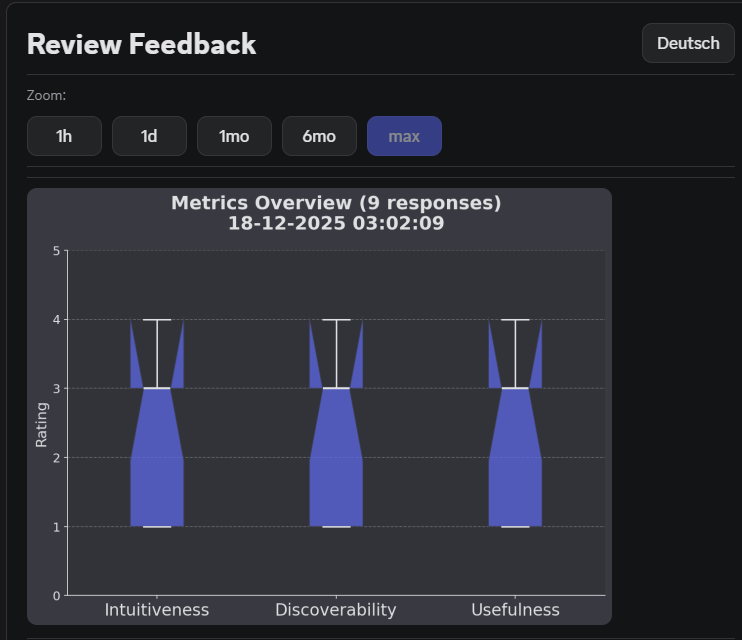
- Charts: Boxplots (Metrics) & Timelines (Trends).
- Features: Filter by time range (1h, 1w, All Time), Export JSON.
- Visibility: Only you see the answer.
- Permission: Operators only, see below.
Health Check Checks the latency to the Discord API.
- Output:
Latency is 42ms ✅ - Use: Verify if the bot is online and responsive.
Force Sync Manually synchronizes the Slash Commands with Discord.
- Use: If new commands aren't showing up or options are outdated.
Who is an operator
/review_feedback, !ping and !resync answer to three kinds of people:
- a developer named in
src/util/operators.py, - the owner of the Discord application,
- an administrator of the home server, the one
DISCORD_SERVER_IDnames.
An administrator of any other server is not an operator. OSCAR is a public bot, so anybody can invite it to a server of their own and is the administrator there.
Workflow & Best Practices¶
1. The "New Semester" Routine¶
- Update Profile: Run
/startif your semester has changed. - Filter: Use
/filterto find "English" modules with "5 CP". - Inspect: Use
/moduleto check exam regulations. - Plan: Add candidates to
/semesterplanand check if you reach ~30 CP. - Compare: Use
/standard_planto verify you aren't missing critical mandatory courses.
2. Search Effectiveness¶
- ✅ Do: Use partial names ("Data") and wait for autocomplete.
- ✅ Do: Search via
/filterif you don't know the exact name. - ❌ Don't: Type full names with typos; let the bot suggest it for you.